TikTok content calendar: a practical weekly template
Build a TikTok content calendar with a reusable weekly example, clear post statuses, and a realistic path from finished video to publication.
On this page
What you’ll take away
- Build a calendar around finished work and real production capacity.
- Use a weekly example you can adapt to your own account.
- Track planned, scheduled, and published as separate states.
A useful TikTok content calendar tells you what to make next and what will actually go live. A list of ideas only answers the first question. Start with one week, a few repeatable subjects, and an explicit status for each post.
The example below is for a solo creator making desk-setup videos. Its times and frequency are illustrative. Adapt them to your capacity and audience rather than treating them as recommended posting times.
Choose three subjects you can repeat
Write down three things your audience comes to you for. For the desk-setup creator, those could be lighting fixes, small-space organization, and honest equipment demonstrations. These are specific enough to suggest a video and broad enough to revisit.
Give each subject a concrete starting idea. “Lighting” is a theme; “Move this lamp to stop monitor reflections” is a filmable video. Capture the opening sentence, the demonstration, and the final result before assigning a date.
If you have time to finish two videos, start with two planned posts. An empty slot is visible capacity. A row labelled “scheduled” when the file does not exist is a misleading commitment.
Copy this weekly calendar
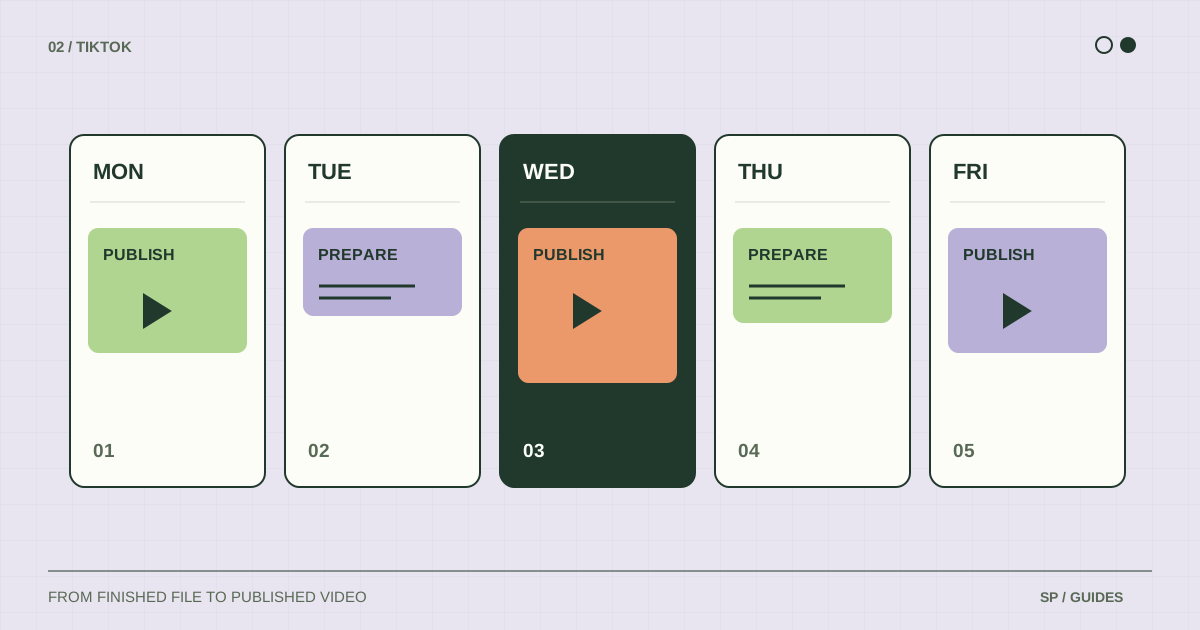
| Day | Video idea | Work to do | Status |
|---|---|---|---|
| Monday | Stop monitor reflections | Film the before-and-after | In production |
| Tuesday | One cable-routing fix | Check the final export and caption | Ready |
| Wednesday | Publish the cable video | Verify destination and saved schedule | Planned |
| Thursday | A small-desk lighting demo | Edit the demonstration | In production |
| Friday | Publish the lighting video | Check the public post after release | Planned |
| Weekend | Answer a useful comment | Keep room for a relevant response | Optional |
This example does not promise daily output. Monday and Thursday are production tasks; Wednesday and Friday are publication intentions. Keeping both visible makes it harder to schedule work you have not finished.
To reuse it, replace each topic with a specific video and add columns for file name, account, planned date, time zone, caption, and published link. The copy control above the table lets you paste the example into your own planning document.
Give each post an honest status
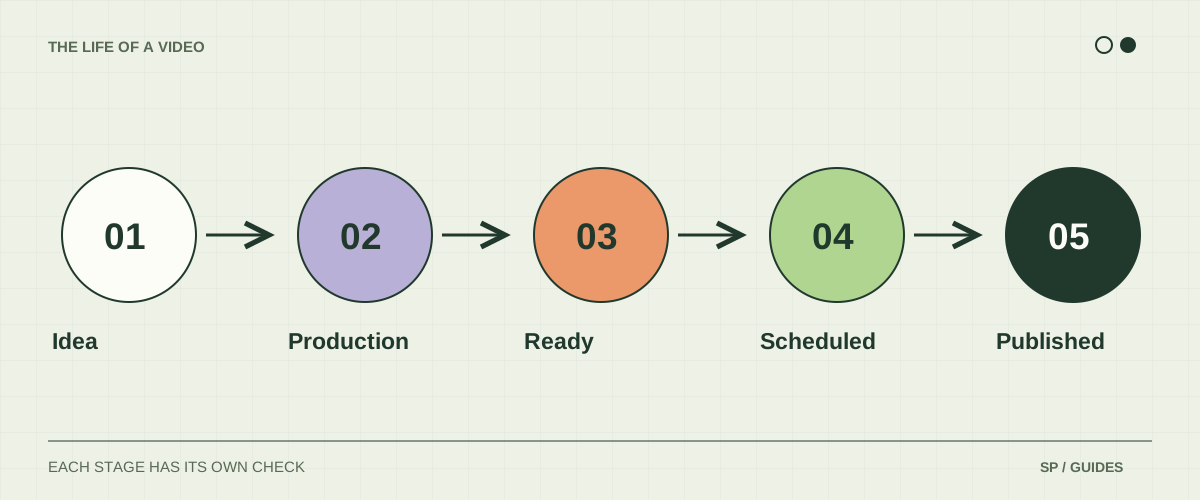
Use a short sequence with a clear exit condition for each stage:
- Idea: the viewer’s question or the opening hook exists.
- In production: filming or editing is still required.
- Ready: the export, caption, and destination have been checked.
- Scheduled: the publishing system has saved an active plan.
- Published: the actual post is visible on the intended account.
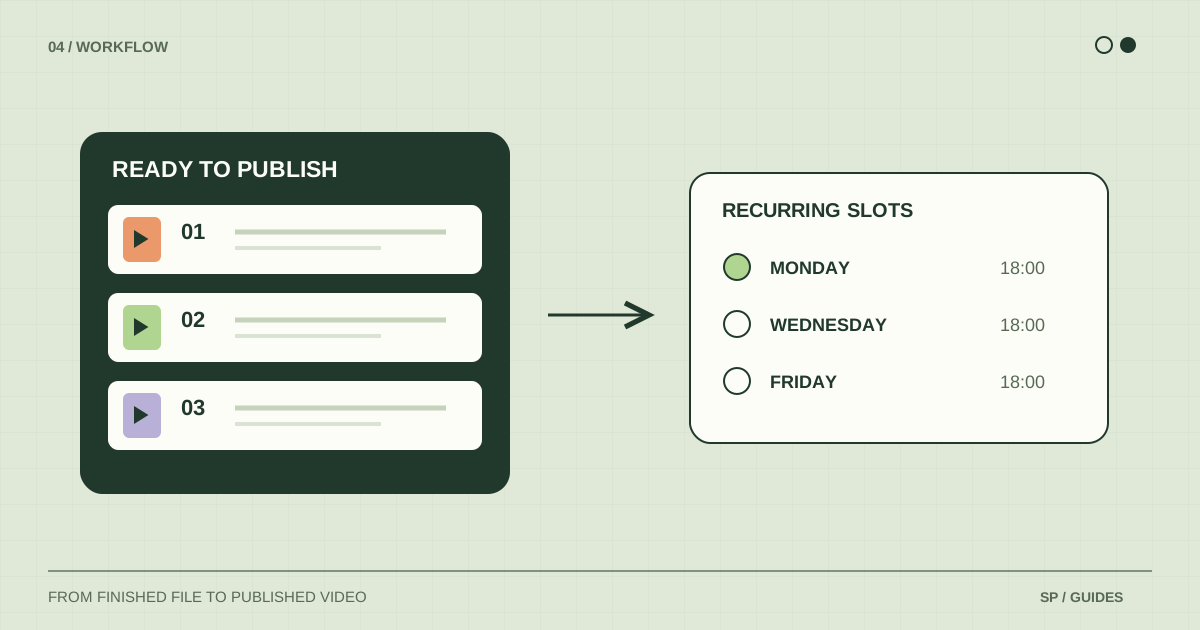
A row in a spreadsheet is only a plan. A video added to a queue may still need a recurring slot. Give “scheduled” a precise meaning in whichever system you use, and record the public link before marking a post as published.
Turn the calendar into actual publications
TikTok Studio includes upload, scheduling, and content-management tools. Availability can differ by region and interface. Open the tools available on your account and verify that the saved post appears in the relevant content list.
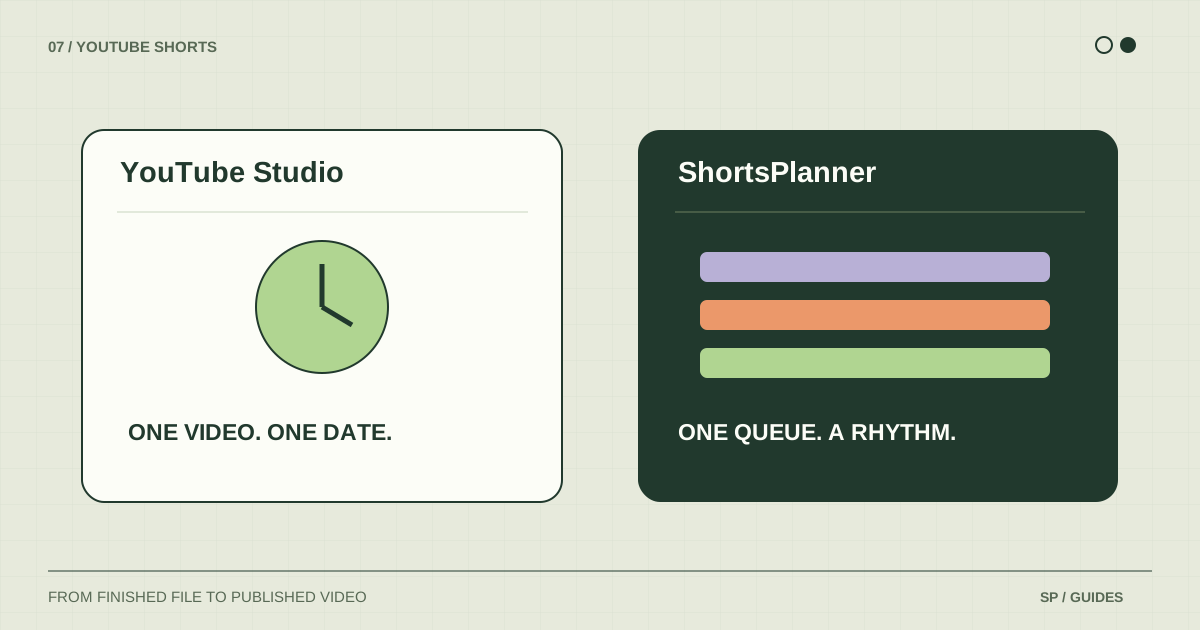
If you also publish to YouTube, ShortsPlanner can organize your finished videos around connected accounts, groups, and recurring slots. Match the queue entry to the correct account or group, then confirm there is a schedule for that destination.
Keep time-sensitive content separate from evergreen videos. A lighting tip can often move to another day. A video that says “the offer ends tonight” needs another review if its publication is delayed.
Review the week with three questions
At the end of the week, compare your intention with what happened:
- Which ready videos never reached a publishing tool?
- Which planned posts failed to become public, and why?
- Which subjects produced comments or questions worth answering?
For example, if three videos are ready and none is scheduled, the next improvement is a publishing session. If no files are ready, adding more calendar slots will not help. If one post failed, inspect its status before creating a duplicate.
Use this review to pick next week’s workload. YouTube also recommends thinking about a sustainable production and release schedule; the same planning question is useful when you work across both platforms.
Frequently asked questions
Should I plan a month in advance?
You can keep a month of ideas while committing only the next week of finished work. The farther away a date is, the more useful it is to distinguish a tentative topic from a confirmed publication.
Should every TikTok also become a YouTube Short?
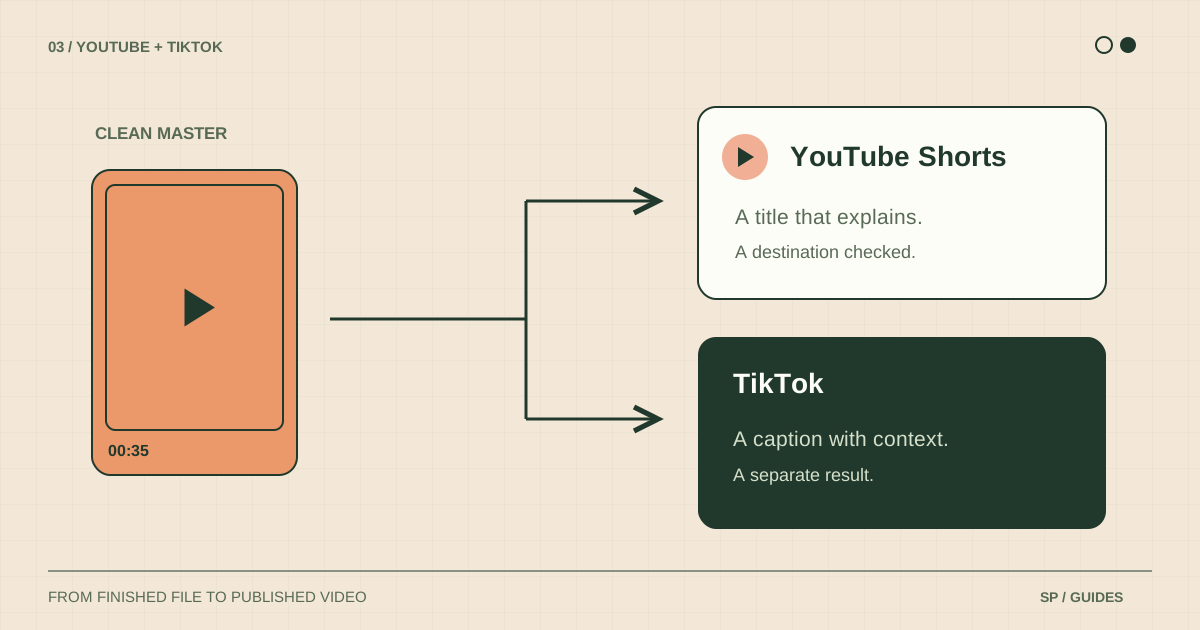
Only if it makes sense for that audience and its publishing details. Use the cross-platform adaptation guide to review the file, wording, and destination separately.
Where should I keep my source files?
Keep a clearly named final export outside the social platforms, with its editable project when possible. Your calendar should point to that source instead of becoming the only place you record its existence. The weekly workflow includes a practical handoff checklist.
Sources & further reading
Platform rules change. These official resources complement the examples and workflows in this guide.
We build ShortsPlanner to organize and publish videos you have already created. Example schedules are illustrative and can be adapted to your work.
First published