How to schedule YouTube Shorts: a step-by-step guide
Schedule a YouTube Short in Studio, check its visibility, and set up recurring publishing slots in ShortsPlanner. Two methods, clearly explained.
On this page
What you’ll take away
- Use YouTube Studio for a specific video and publication date.
- Understand how a recurring publishing queue differs from native scheduling.
- Check the destination, visibility, and result before preparing a larger batch.
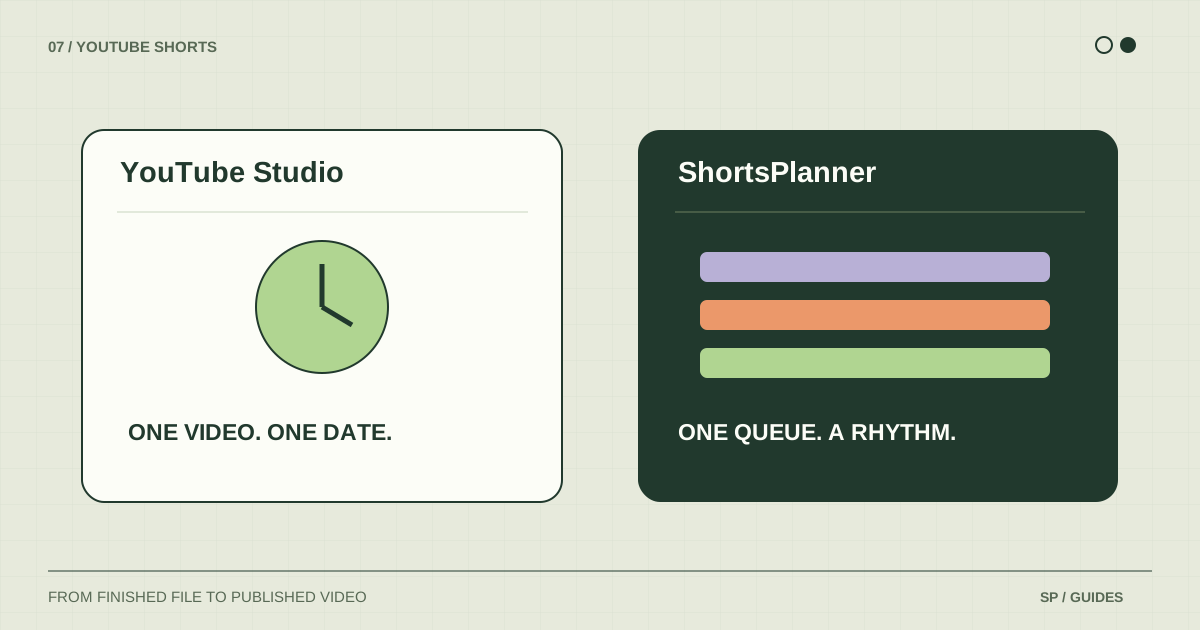
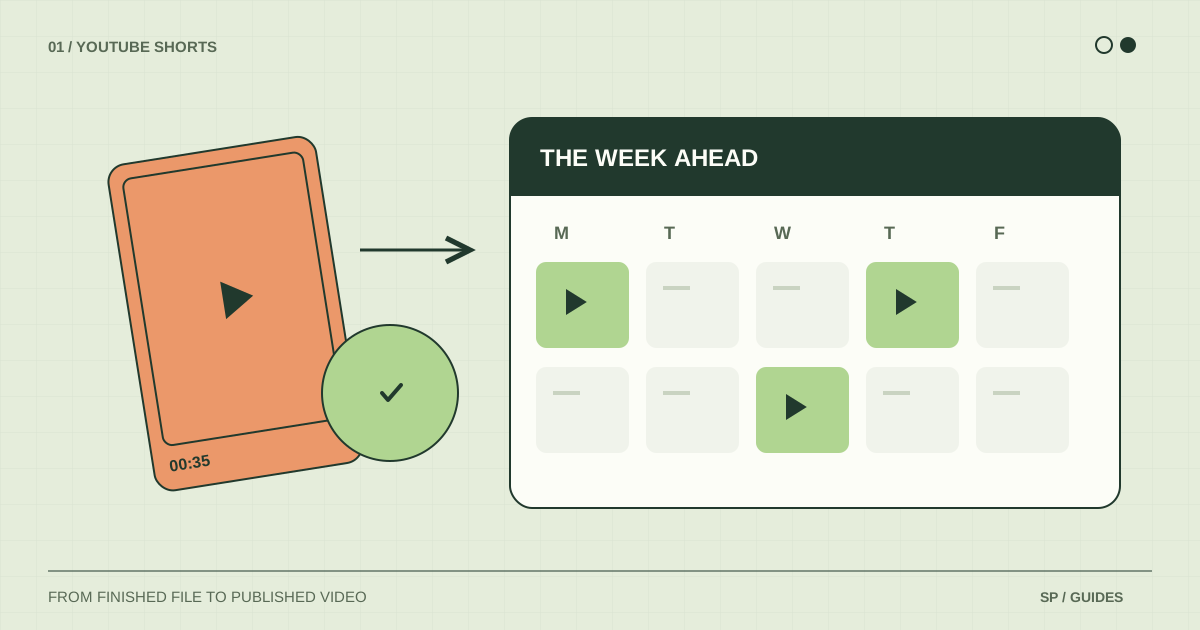
You can schedule a YouTube Short directly in YouTube Studio. If your next task is “publish this video on Thursday,” that is a good place to start. If it is “keep several accounts supplied with finished videos every week,” a queue with recurring slots may suit you better.
This guide explains both approaches. They solve different publishing problems, so choose the one that matches your next upload.
Before you schedule: prepare the right file
Keep a final export in a clearly named folder. For a full-screen vertical example, you might export a 1080 × 1920 file and name it desk-lighting-tip-v03.mp4. That resolution is a practical production choice, not a requirement for scheduling.
YouTube currently classifies new square or vertical uploads of up to three minutes as Shorts. Check the official Shorts guidance linked below if your upload behaves differently, especially when working with music or an older video.
Watch the entire export once. Check the first frame, subtitles, audio ending, and any instruction spoken in the video. A scheduled upload preserves an editing mistake just as efficiently as a finished video.
Schedule your Short in YouTube Studio
- Open YouTube Studio on the intended channel.
- Choose Create → Upload videos, then select your file.
- Complete the video details and audience settings.
- Under Visibility, choose Schedule and set the date, time, and time zone.
- Confirm, then find the video in Content and verify its scheduled status.
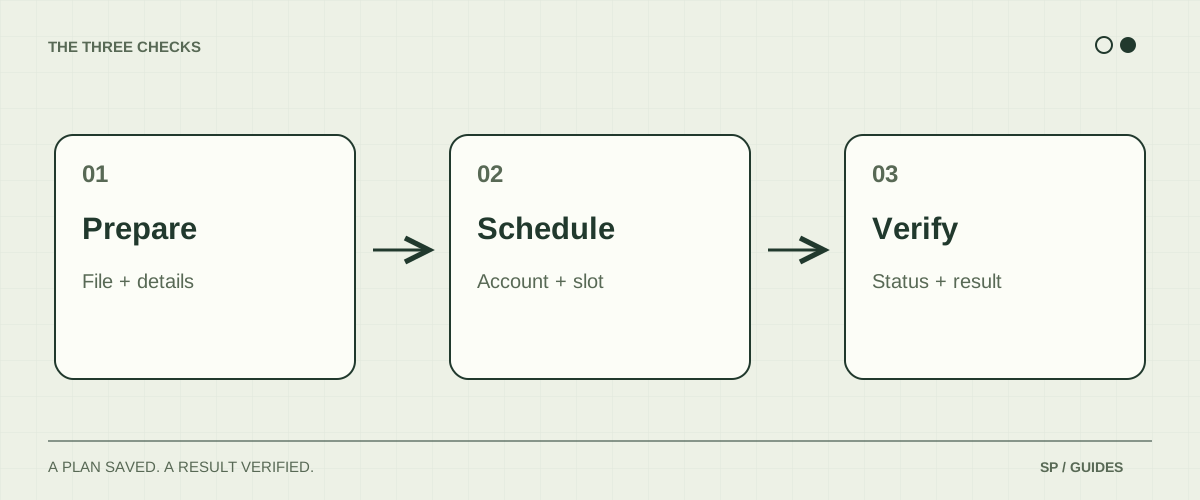
Before closing the tab, record the video link and the channel you used. This gives you something definite to check later instead of relying on the memory of clicking a button.
Check the saved date and visibility
Imagine a product tutorial intended for Thursday at 18:00 in your audience’s local time. Write that intention down before scheduling, then compare it with the saved value. This simple check is especially useful when your computer and your audience use different time zones.
To adjust a native schedule, open the video from Studio’s Content section and review its visibility and scheduling settings. Confirm the new date after saving. Avoid keeping a second copy queued in another publishing tool while the native schedule is still active.
One video, one active publishing plan. If you change tools, decide which system will publish before enabling the replacement.
Use recurring slots in ShortsPlanner
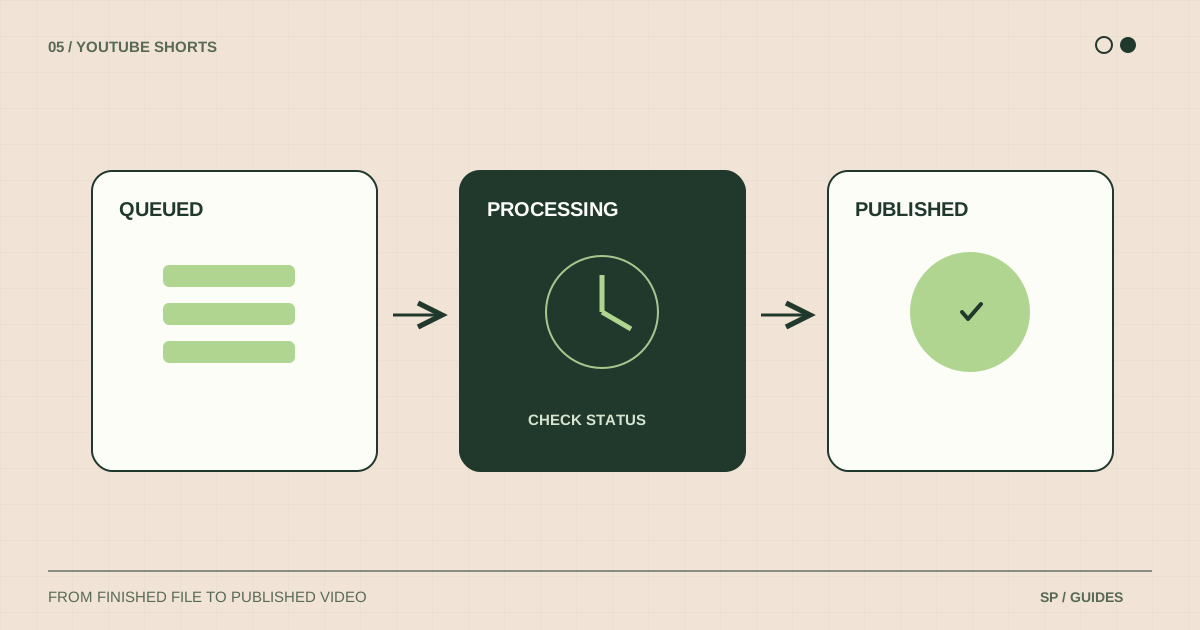
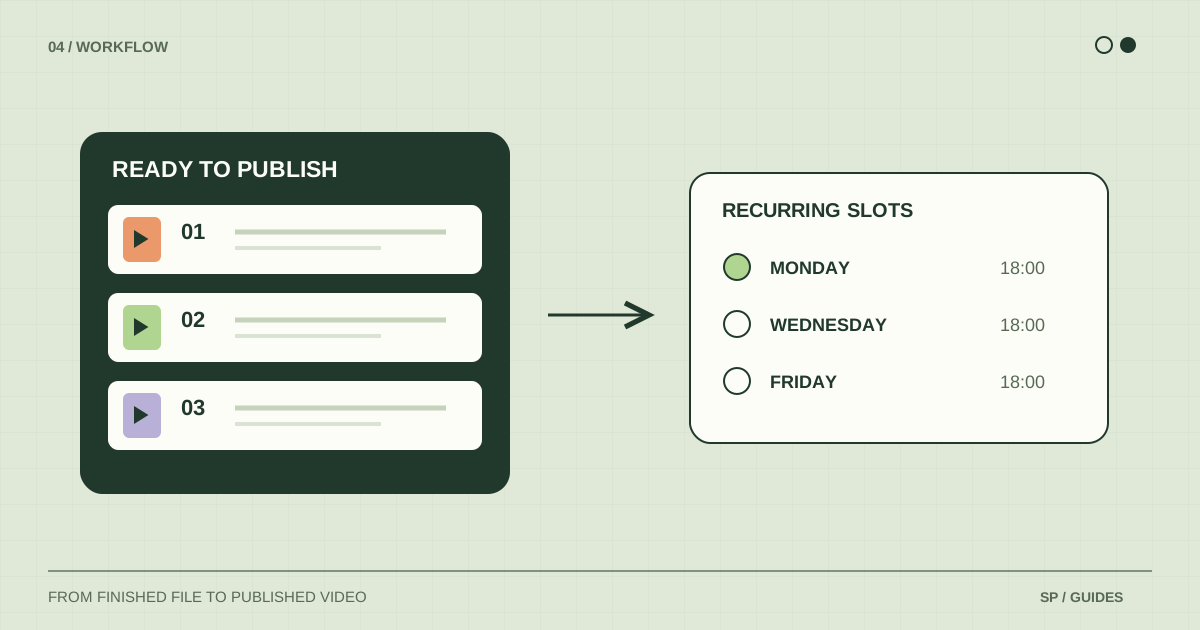
ShortsPlanner organizes publishing around destinations, a queue, and recurring slots. In the current workflow, it sends queued content to the platform when a slot runs. YouTube then processes that upload; the slot is not a guarantee that the video will be publicly playable at that exact second.
To prepare your first queued video:
- Connect the intended YouTube account and check the displayed channel identity.
- Open Publishing schedules and add a slot for that account or its group. Start with one day and time you can verify.
- Create a post, choose your finished video, and review its title, description, audience, and YouTube visibility.
- Add it to the queue rather than choosing immediate publication.
- Check that the destination has a schedule. After the slot runs, verify the result in YouTube Studio.
A queued item needs a matching destination schedule. An account slot and a group slot should not be treated as interchangeable: the schedule must match where you queued the post.
Choose the method for your situation
| Your situation | Start with | What to verify |
|---|---|---|
| One Short with a particular release date | YouTube Studio | Saved time zone and scheduled visibility |
| A recurring stream of finished videos | ShortsPlanner | Queue destination and recurring slot |
| An announcement with a strict launch time | A native schedule prepared early | Platform processing and the final saved date |
| YouTube and TikTok in the same workflow | A shared publishing queue | Each destination’s settings and result |
For a broader decision, read the YouTube Shorts scheduler guide. To plan the work around those slots, use the weekly publishing workflow.
Frequently asked questions
Do I need to pay to schedule one Short?
You can use YouTube Studio’s native scheduling without subscribing to ShortsPlanner. A separate tool becomes useful when its queue and account organization solve a recurring task for you.
Is a queued video already scheduled inside YouTube Studio?
Not necessarily. A ShortsPlanner queue entry and a native YouTube schedule are different states. Check the tool that owns the publication, then confirm the platform result after it runs.
What should I do if the video does not appear?
First find out whether it is still queued, already uploaded but private, or showing an error. Follow the scheduled Short troubleshooting guide before uploading another copy.
Sources & further reading
Platform rules change. These official resources complement the examples and workflows in this guide.
We build ShortsPlanner to organize and publish videos you have already created. Example schedules are illustrative and can be adapted to your work.
First published